Lifestyle Product Photo Prompt: Show Your Product in Real Use
A white background photo tells a buyer what your product looks like. A lifestyle photo tells them where it fits in their day. Upload a clear photo of your own product and paste the prompt below, and the AI app builds a kitchen counter scene in morning light around it. It names one place, one light source and one small story, because a vague 'lifestyle background' tends to come out as a busy, generic room. For a cafe, desk, bathroom or outdoor scene, use the product prompt builder further down this page and the scene table below.
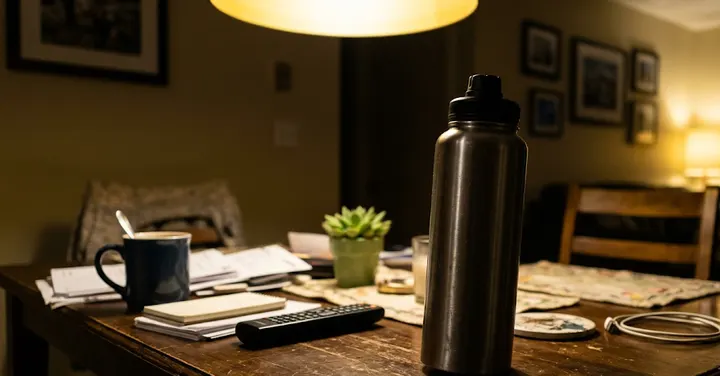 Before: phone photo
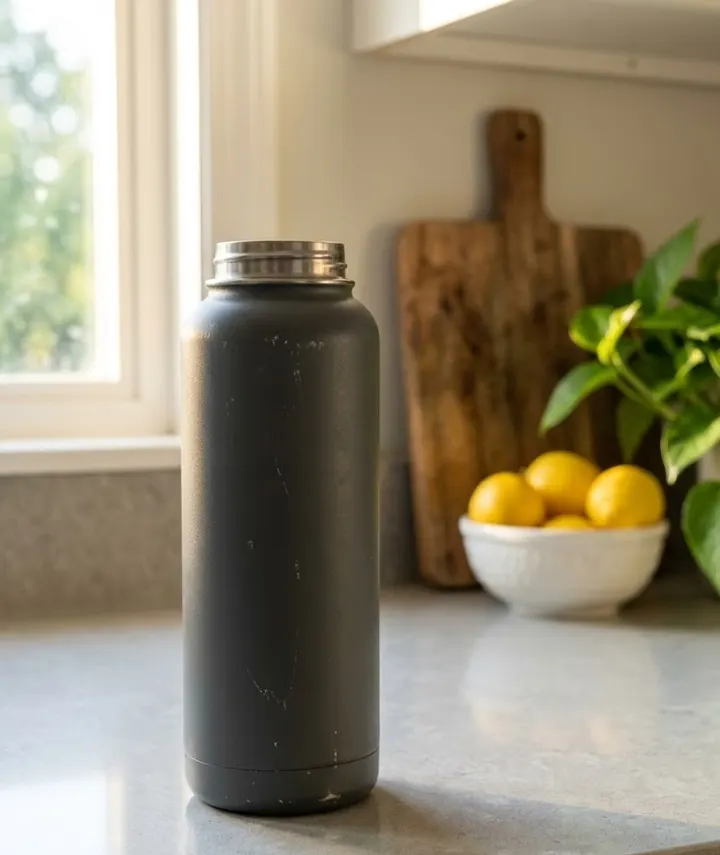 After: prompt 1
Jump to a prompt (1)
- 1. Open your AI photo app
- 2. Upload a clear photo of your product
- 3. Paste a prompt and generate
Lifestyle product photos prompts to copy
Upload a clear photo of your real product in the AI app first, then paste a prompt. Results differ on every try, so generate two or three versions and keep the best one. Want a different outfit or background? Use the prompt builder below.
1. Kitchen counter in morning light
Using the uploaded photo, place my product on a clean kitchen counter made of light grey stone, early morning sunlight coming through a window on the left. Behind it, slightly out of focus, a wooden chopping board, a small bowl of lemons and a green plant. Keep the product exactly as in the uploaded photo: same shape, colour, label, logo, lid and quantity. Do not add or remove anything on the product and do not redraw the label text. Realistic photograph, product sharp, background softly blurred. No added text, no watermark. Aspect ratio 4:5.
Why it works: Window light from one side gives the product a soft shadow and shows its shape, which flat overhead light hides. Keeping the props out of focus means they suggest a kitchen without competing with your label.
Make it yours: For a darker, richer look, change the counter to black granite and the lemons to a few red chillies, which suits spice and pickle jars.
About these prompts
The prompt carries a product lock. It asks the app to keep your item exactly as it is in the uploaded photo: the shape, colour, label, logo, stitching and quantity, with nothing added or removed. That matters because a buyer will compare the photo with what arrives at their door. If the app changes your label or adds a second bottle, regenerate or reply with a correction before you use the image.
Use these scenes as secondary images in a listing, or as social posts and ads. Most marketplaces want the first image on a plain background, so read our marketplace photo rules guide before you upload. Results vary between attempts, so run the prompt two or three times and keep the version where the product looks most like the real thing.
Build your own Lifestyle product photos product prompt
Using the uploaded photo, create a professional e-commerce product photograph of the product, on a pure white (#FFFFFF) seamless background. Lighting: soft, even studio softbox lighting. Angle: front view. Shadow: a soft, natural contact shadow under the product. Show only the product, centred and filling about 85% of the frame, sharp from edge to edge. Keep the product exactly as in the uploaded photo: same shape, size, colour, material, label, logo and quantity. Do not add, remove or redesign any part of it. No added text, no watermark, no extra products. Aspect ratio 1:1.
Main images on most marketplaces need a pure white background, the real product only and no added text. Check your marketplace's current image rules.
Pick the scene by product type
A lifestyle scene works when the buyer can picture using the product there. A spice jar in a bedroom looks odd. A night cream on a kitchen counter does too. Use the table to match your product to a setting, then swap that setting into the prompt above or pick it in the builder.
| Product type | Scene that makes sense | Props that help |
|---|---|---|
| Spices, pickles, kitchen tools | Kitchen counter, dining table | Chopping board, lemons, chillies, steel bowls |
| Skincare, soap, shampoo | Bathroom shelf, dressing table | Rolled towel, small plant, glass tray |
| Bottles, lunch boxes | Picnic, office desk, school bag | Fruit, notebook, plain bag |
| Cushions, throws, lamps | Living room, bedroom | Sofa, rug, window, plants |
| Stationery, gadgets | Work desk flat lay | Laptop corner, pen, blank sticky note |
| Candles, planters, mugs | Balcony, bedside table | Plants, lamp, book |
| Toys, kids items | Kids room shelf, no child in frame | Soft toys, picture books |
Keep props plain and unbranded. A famous logo on a laptop or a pair of earbuds draws the eye away from your product and can confuse buyers about what is included.
Keeping the product true in a busy scene
The more the app has to draw around your product, the more likely it is to redraw the product too. Labels lose letters, logos get simplified and a set of three becomes four. These habits help:
- Upload a sharp, well lit photo of the product on its own. A plain background photo gives the app clean edges to cut around. Our white background prompts can help you make one first.
- Say the quantity in words, such as 'exactly two jars', when you sell a set.
- State the real size if it matters, because the app guesses size from the props around it.
- If the label text changes, reply with 'keep the label exactly as in my original photo, do not redraw any letters' and regenerate.
- Zoom in on the result and compare it with the real item before you post it.
Where lifestyle images go in a listing
Most marketplaces ask for the first image to be the product alone on a plain, usually white background. Lifestyle images fit in the later slots, where buyers scroll to see the product in context. They also work well as social posts, WhatsApp catalogue images and ads.
For ads and posts, 4:5 suits a feed and 9:16 suits stories and status. For listing slots, a square 1:1 image is a common safe choice. The product image sizes guide lists the sizes each platform publishes. If your item is food, the food product page has notes on steam and props that suit food.
Frequently asked questions
Can I use an AI lifestyle photo as the main image on a marketplace?
Usually not. Most marketplaces want the main image to show the product on a plain background with nothing else in the frame. Use lifestyle scenes for secondary images, social posts and ads, and check the rules of the platform you sell on.
Why did the AI change the text on my label?
When the app draws a new scene, it sometimes redraws small text instead of keeping it. Upload a sharp photo where the label is readable, keep the product lock line in the prompt, and if letters still change, reply asking it to keep the label exactly as in the original and regenerate.
Is it honest to show my product in a room I do not own?
A styled scene is fine as long as the product itself looks exactly like what the buyer receives. Do not add parts, accessories or props that a buyer might think are included, and keep at least one real, unedited photo of the item in the listing.
How do I show the real size of my product?
Add the real measurement to the prompt and place the product next to something people know, such as paperback books, a coffee cup or an adult hand. Check the result, because the app can still get scale wrong.
Should I add a person to the lifestyle photo?
A hand holding the product is often enough and keeps the focus on the item. Avoid adding children or anyone who has not agreed to be shown, and do not create a person to look like a customer review.
New to AI photo editing? Start with how to edit photos with Gemini or with ChatGPT.
More prompt ideas
Helpful guides
- Marketplace photo rulesWhat online stores expect from a main product image: plain background, product filling the frame, no text or watermarks, and honest edits when you use AI.
- Product image sizesProduct image sizes and ratios for Shopify, Etsy, eBay, Google Merchant Center and Facebook ads from official seller help pages, plus the ratio to ask for.
- Best photo for AI editingWhich photo to upload before an AI edit: light, angle, distance, resolution, filters, glasses and group shots, with a quick checklist table and phone tips.