White Background Product Photography Prompts for Your Listings
Most online stores ask for a main product image on a plain white background, with the product filling most of the frame. If you sell from a shop counter, a home table or a small storeroom, you probably do not have a light box or a studio. These prompts let you upload the phone photo you already took and ask an AI image app to replace the background with clean white, while keeping the product itself exactly as it is.
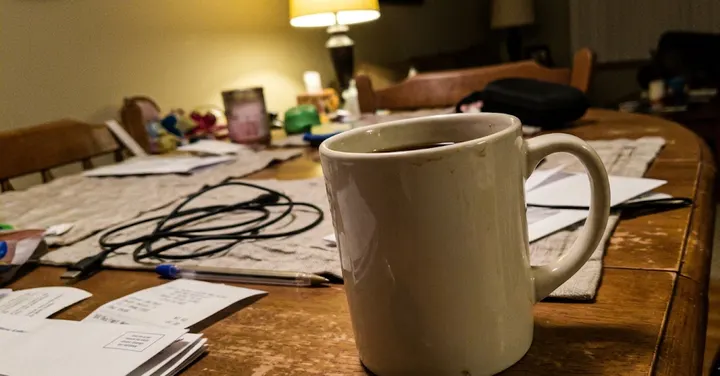 Before: phone photo
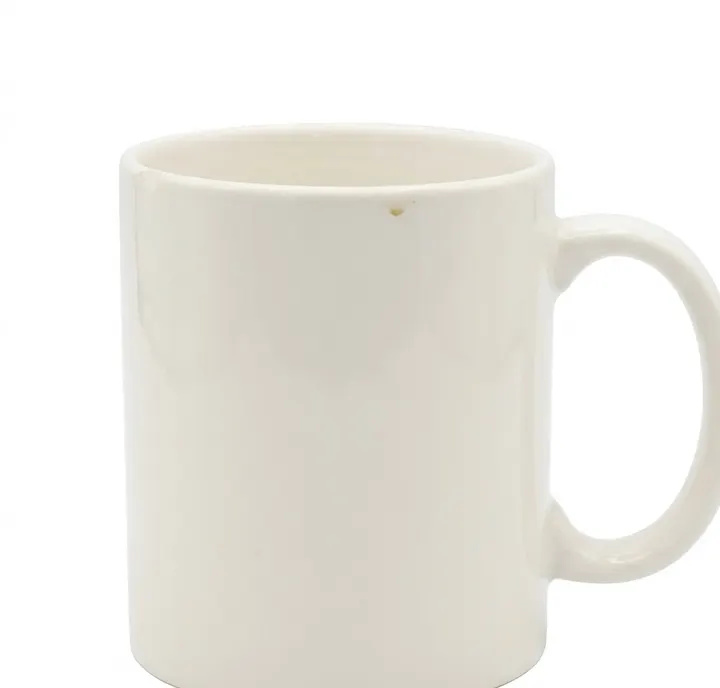 After: prompt 1
Jump to a prompt (7)
- 1. Open your AI photo app
- 2. Upload a clear photo of your product
- 3. Paste a prompt and generate
White background prompts to copy
Upload a clear photo of your real product in the AI app first, then paste a prompt. Results differ on every try, so generate two or three versions and keep the best one. Want a different outfit or background? Use the prompt builder below.
1. Pure white main listing image
Using the uploaded photo, remove the background completely and place the product on a pure white background, RGB 255, 255, 255, with no gradient and no texture. Keep the product exactly as in the uploaded photo: same shape, colour, label, logo, stitching and quantity. Add nothing and remove nothing. Centre the product and let it fill about 85 percent of the frame, with an even small margin on all sides. Soft, even studio light, sharp focus across the whole product. No added text, no watermark, no props. Square image, aspect ratio 1:1.
Why it works: Giving the exact white value stops the app from drawing an off-white studio sweep, which many store checkers reject. The 85 percent fill instruction matches the common rule that the product should take up most of the main image.
Make it yours: If your store asks for a portrait main image, change the ratio to 4:5 and keep the fill instruction the same.
2. White background with a soft contact shadow
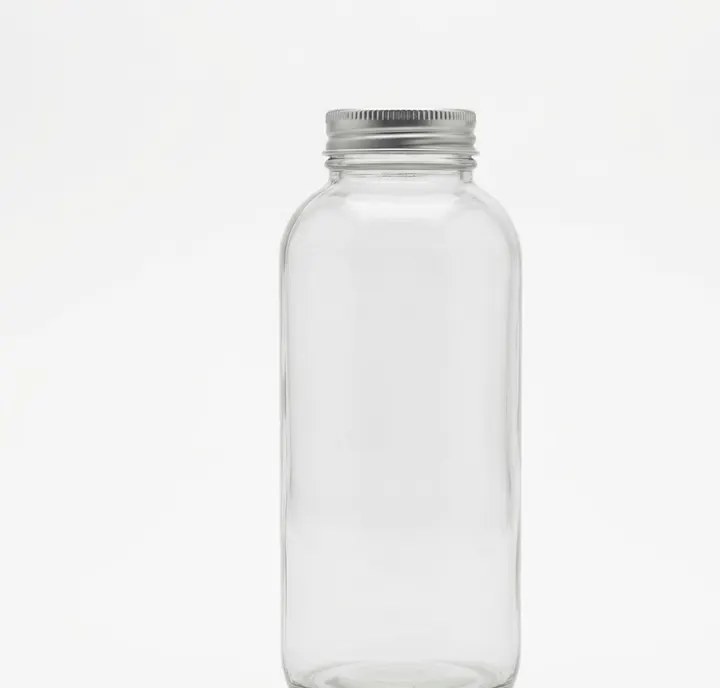
Place the product from my photo on a seamless pure white background and add only a soft, faint contact shadow directly under its base so it looks like it is resting on a surface. The shadow should be light grey, short and blurred at the edges, with no long cast shadow and no reflection. Keep the product exactly as in the uploaded photo, with the same shape, colour, label text, logo and any small marks. Do not add or remove anything. Product centred, filling most of the frame. No added text, no watermark. Aspect ratio 1:1.
Why it works: A pure cut-out with no shadow can look pasted on, especially for boxes and bottles. Asking for a short contact shadow under the base grounds the product while keeping the background white enough for a main image.
Make it yours: For a secondary image, ask for 'a soft shadow falling to the right at 45 degrees' to show more depth.
3. Fix a cluttered phone photo
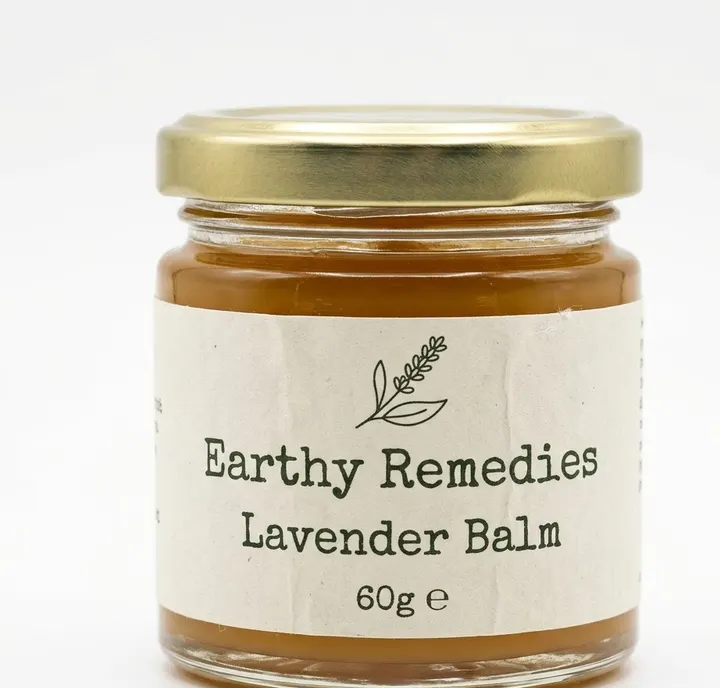
My photo was taken on a shop counter with other items, wires and a patterned cloth behind the product. Remove everything except the main product and place it on a plain pure white background. Keep the product exactly as in the uploaded photo: same shape, size proportions, colour, label, logo, stitching and quantity. Do not repair, sharpen or redraw the label. Remove only the background clutter and any part of my hand or fingers holding it. Even soft light, centred, filling most of the frame. No added text, no watermark. Aspect ratio 1:1.
Why it works: Telling the app what the clutter is helps it separate the product from objects that touch it. Saying 'do not redraw the label' matters because apps often guess blurry text and invent letters that are not on your real pack.
Make it yours: If a fingertip is covering part of the product, retake the photo instead of asking the app to fill it in, since a filled-in area is a guess.
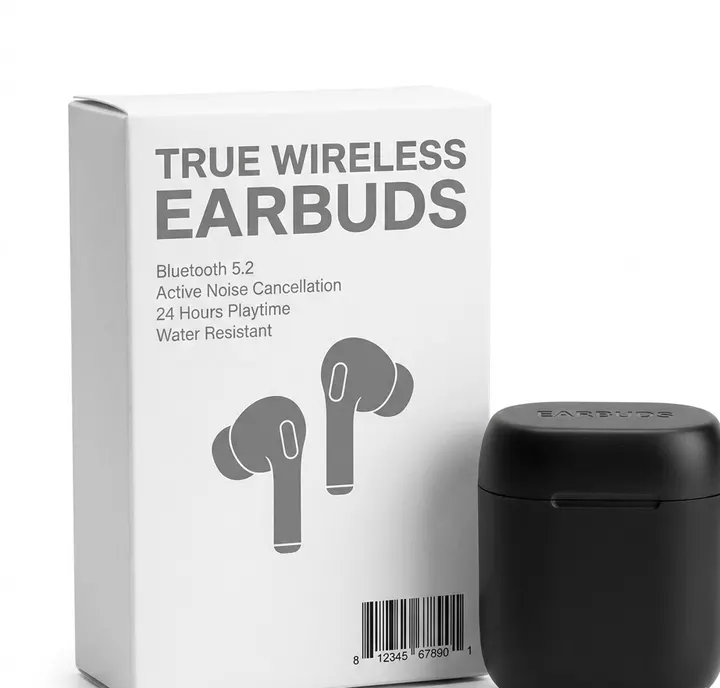
4. Product with its box on white
Using the uploaded photo, show the product standing in front of its box, slightly to the right, both on a pure white background. Keep both the product and the box exactly as in my photo: same printing, colours, logo, barcode area and shape. Do not change or add any printed text on the box. Soft front light with a faint shadow under each. Both items together fill most of the frame. No added text, no watermark. Aspect ratio 1:1.
Why it works: Buyers often want to see the box for gifts or to check it is sealed and genuine. Locking the printing on the box stops the app from inventing claims or badges that your real box does not carry.
Make it yours: If the box is the hero, swap the order: 'box in front, product slightly behind and to the left'.
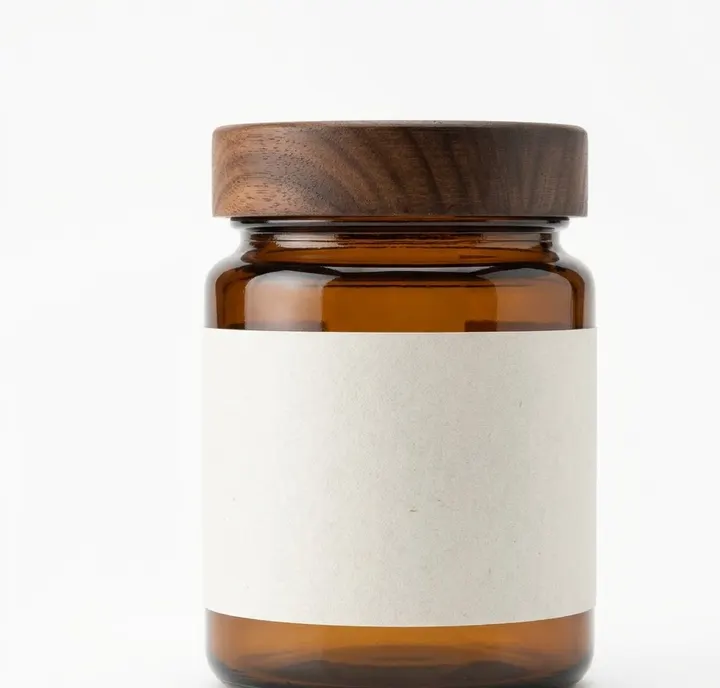
5. Keep the exact product colour
Place the product from my photo on a pure white background and keep its colour exactly as it appears in the uploaded photo. Do not saturate, brighten or shift the hue. Remove any yellow or blue colour cast from the room light only from the background, not from the product. Keep the product's shape, label, logo, texture and quantity identical, add or remove nothing. Soft neutral daylight, centred, filling most of the frame. No added text, no watermark. Aspect ratio 1:1.
Why it works: Wrong colour is one of the most common reasons for returns. Apps like to make colours richer, so asking them not to saturate and to fix the cast only on the background protects the shade buyers will compare against.
Make it yours: Take your original photo next to a white sheet of paper in daylight first. A true white reference makes the app's job easier.
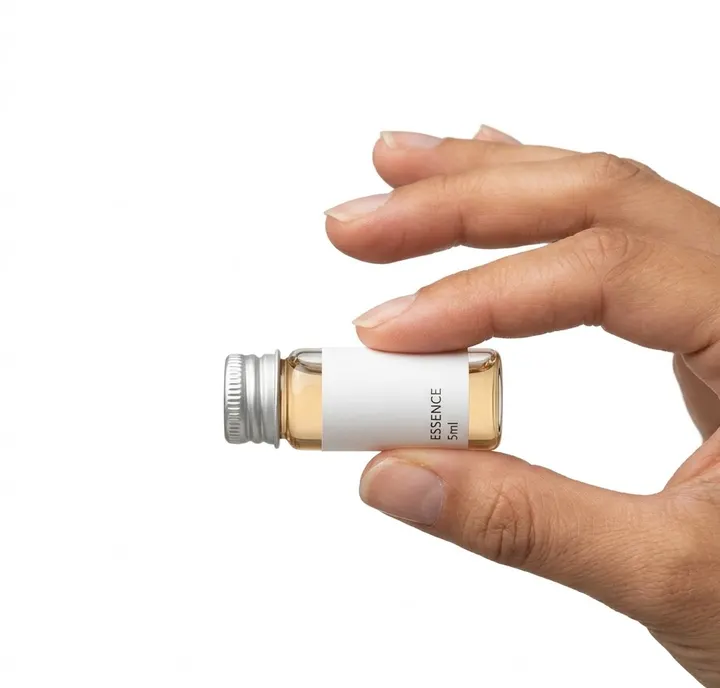
6. Size view with a hand for scale
Using the uploaded photo, create a secondary listing image on a pure white background showing the product held between an adult's thumb and finger, so buyers can judge its real size. Keep the product exactly as in my photo, the same size relative to the hand as in real life, same shape, colour, label and logo. Do not make the product look bigger. Clean, neutral skin tone, short plain nails, no rings. Product sharp, hand slightly softer. No added text, no watermark. Aspect ratio 1:1.
Why it works: Size complaints are common for small products. A hand gives scale, and the line 'do not make the product look bigger' guards against the app enlarging the item to fill the frame, which would defeat the point.
Make it yours: If you have a real photo of the item in your hand, upload that one instead, since the app will then keep the real proportion.
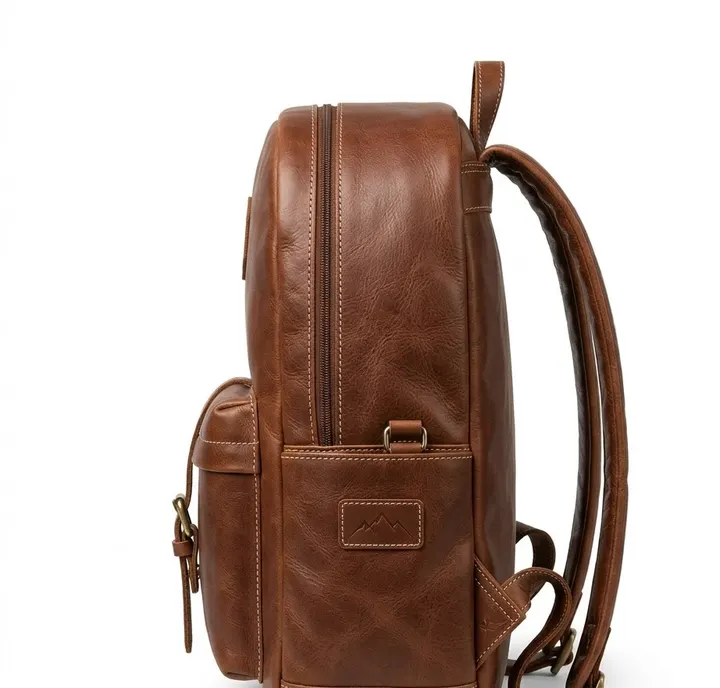
7. Matching angle for an image set
This is the side view of the same product I used for my main image. Place it on the same pure white background with the same soft, even studio light and the same faint contact shadow, so it matches the rest of my listing set. Keep the product exactly as in this uploaded photo: same shape, colour, stitching, label, logo and parts. Add or remove nothing. Centre it at the same size in the frame as the front view, filling most of the image. No added text, no watermark. Aspect ratio 1:1.
Why it works: When each image is made in a separate chat, the light and shadow drift and the listing looks uneven. Describing the shared setup in every prompt keeps a set of front, side and back images consistent.
Make it yours: Save this wording in a note and only change 'side view' to 'back view' or 'top view' for each new image.
About these prompts
That last part matters more than the white. A listing image has to show the real item a buyer will receive. If the AI smooths a scratch, changes the shade of a bottle, adds a missing button or prints a sharper logo, the customer gets something different from the picture, and that leads to returns, bad reviews and sometimes delisting. Every prompt on this page carries a product lock line that tells the app to add or remove nothing. Check each result against the real item before you upload it.
Below the prompts you will find a table of shadow styles, a section on why AI whites often come out grey or cream, and a checklist for the main image. Results vary between attempts, so run a prompt two or three times and keep the version that matches your product most closely. For store-by-store pixel sizes, see our product image sizes guide.
Build your own White background product prompt
Using the uploaded photo, create a professional e-commerce product photograph of the product, on a pure white (#FFFFFF) seamless background. Lighting: soft, even studio softbox lighting. Angle: front view. Shadow: a soft, natural contact shadow under the product. Show only the product, centred and filling about 85% of the frame, sharp from edge to edge. Keep the product exactly as in the uploaded photo: same shape, size, colour, material, label, logo and quantity. Do not add, remove or redesign any part of it. No added text, no watermark, no extra products. Aspect ratio 1:1.
Main images on most marketplaces need a pure white background, the real product only and no added text. Check your marketplace's current image rules.
Shadow styles and when to use each one
The white is only half of a good white background image. The shadow decides whether the product looks like it is sitting on something or floating in space. Pick one style for your whole store so your listings look like a set.
| Shadow style | What to write | Best for | Main image? |
|---|---|---|---|
| No shadow (pure cut-out) | no shadow, pure white background | Simple flat items, strict store rules | Yes |
| Contact shadow | soft faint contact shadow directly under the base | Bottles, boxes, shoes, gadgets | Usually yes |
| Drop shadow | soft shadow falling to one side at 45 degrees | Giving depth to secondary images | Check your store |
| Reflection | faint fading mirror reflection below | Glossy cosmetics, watches, phones | Often secondary only |
| Floating | product slightly raised with a soft shadow below | Ads and banners | No |
Rules differ between stores and change over time, so check your seller help pages before you decide. Our guide to marketplace product photo rules explains the rules most stores share.
Why the white comes out grey, cream or blue
AI image apps often draw a studio sweep rather than a flat white. The result looks white to your eye but measures as light grey, around 240 instead of 255, and some store checkers flag it. You can check this by opening the image in any free editor and reading the pixel colour in a corner.
- Grey white: the app has added a vignette or gradient. Reply with 'make the whole background flat pure white 255, with no gradient or vignette in the corners'.
- Cream or yellow white: the warm room light from your photo has spread into the background. Ask it to 'remove the warm cast from the background only, keep the product colour'.
- Blue white: often from tube light or a window on a cloudy day. Same fix, and reshoot near a window in daylight next time.
- White product on white: a white mug or shirt can melt into the background. Ask for a faint contact shadow and slightly darker edge lines so the outline stays clear.
Main image checklist before you upload
- Compare the result with the real item in your hand. Colour, shape, label and count must match.
- Look closely at small text. If any letter or number changed, discard that version.
- Check the product fills most of the frame and is not cut off at the edges.
- Make sure there is no added text, badge, border, watermark or prop in the main image.
- Export at the size your store asks for. Most accept a large square image; our image sizes guide lists common ones.
- Keep your original phone photo. If a buyer or the store asks, you can show the source image.
Lifestyle shots, festive banners and model photos belong in your secondary images and ads. You will find scene ideas in our lifestyle product prompts.
Frequently asked questions
Is it allowed to use AI to make the white background for my listing?
Most stores care about what the image shows rather than how you made it. The image has to show the real product accurately, on the background they ask for. Changing only the background is usually fine. Changing the product itself, such as its colour or condition, is where you get into trouble. Read your own store's current seller rules to be sure.
Why does the app change the text on my product label?
When text in your photo is small or blurry, the app tries to guess it and redraws letters. Use a sharper source photo, add a line saying do not redraw or retype any text, and always read the label in the result. If anything changed, use a different attempt.
How much of the frame should the product fill?
Many stores ask that the product fills most of the main image, often described as around 85 percent. Ask for that in the prompt and leave a small even margin so nothing is cut off. Check your store for its exact rule.
Can I remove a scratch or dent from the product photo?
Do not do this for something you are selling. A buyer who receives a scratched item after seeing a clean photo has a fair reason to return it and leave a bad review. You can remove dust on the lens or a mark on the table, but leave the product as it really is.
My white product disappears into the white background. What do I do?
Ask for a soft contact shadow and thin slightly darker edge lines so the outline stays visible. A very light grey surface is another option for secondary images, but keep the main image white if your store requires it.
New to AI photo editing? Start with how to edit photos with Gemini or with ChatGPT.
More prompt ideas
 Jewellery1 prompt
 Cosmetics and skincare1 prompt
 Food products1 prompt
 Lifestyle product photos1 prompt
Helpful guides
- Marketplace photo rulesWhat online stores expect from a main product image: plain background, product filling the frame, no text or watermarks, and honest edits when you use AI.
- Product image sizesProduct image sizes and ratios for Shopify, Etsy, eBay, Google Merchant Center and Facebook ads from official seller help pages, plus the ratio to ask for.
- Best photo for AI editingWhich photo to upload before an AI edit: light, angle, distance, resolution, filters, glasses and group shots, with a quick checklist table and phone tips.