Jewellery Product Photo Prompt for Sellers
Jewellery is one of the hardest things to photograph on a phone. Gold turns orange under shop tube lights, silver looks grey, stones lose their sparkle and every polished surface reflects your face, the ceiling and the phone. The prompt on this page puts a necklace or chain on pure white for the main listing image. The metal tone table and reflection tips below apply to gold, silver, artificial, oxidised, kundan and beaded jewellery (jewelry, if you sell in the US) as well.
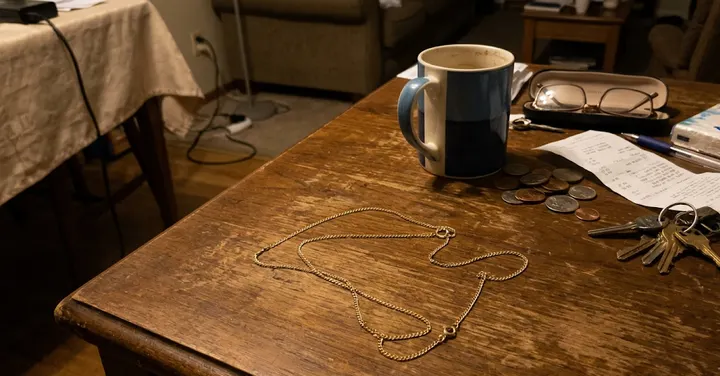 Before: phone photo
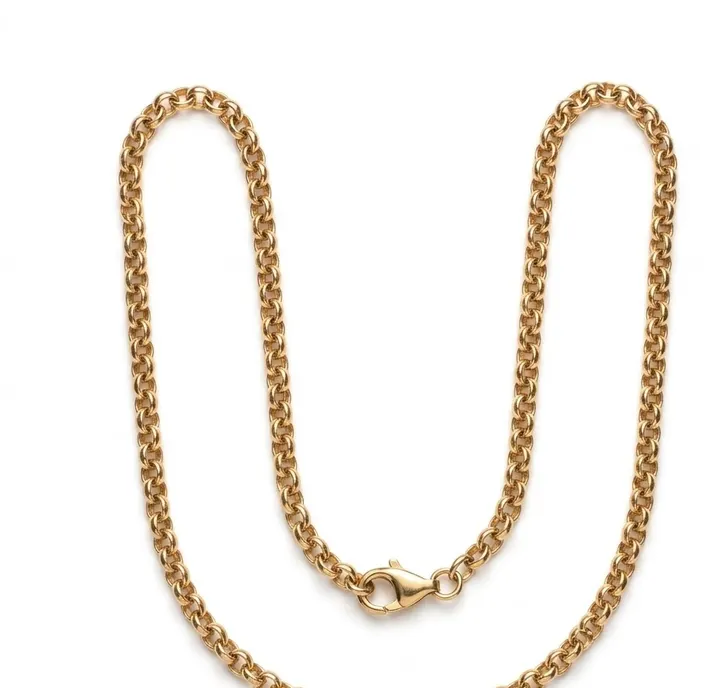 After: prompt 1
Jump to a prompt (1)
- 1. Open your AI photo app
- 2. Upload a clear photo of your product
- 3. Paste a prompt and generate
Jewellery prompts to copy
Upload a clear photo of your real product in the AI app first, then paste a prompt. Results differ on every try, so generate two or three versions and keep the best one. Want a different outfit or background? Use the prompt builder below.
1. Necklace on pure white for the main image
Using the uploaded photo, place the necklace on a pure white background, laid in a neat soft U shape, centred and filling most of the frame. Keep the jewellery exactly as in my photo: same design, metal colour, number and colour of stones, clasp, chain length and links. Add nothing and remove nothing. Soft diffused studio light from above with no harsh hot spots, a very faint shadow under the chain. Sharp focus on the pendant and stones. No added text, no watermark, no props. Aspect ratio 1:1.
Why it works: A U shape is how most buyers expect to see a necklace and it fits a square frame well. Listing stones, clasp and chain length together stops the app from tidying the design into a more symmetrical piece than the one you sell.
Make it yours: For a long chain or rani haar, lay it in a V shape and change the ratio to 4:5 so the full length fits.
About these prompts
The prompt asks the app to keep the piece exactly as it is: the same design, metal colour, number and colour of stones, clasp and chain. That rule protects you. A buyer who orders a necklace with twelve stones and receives one with ten, or who sees bright yellow gold and gets a pale plated finish, will return it. Never ask the app to turn an imitation piece into one that looks like real gold or diamond, and never add a hallmark or brand mark that is not on your item.
After the prompt you will find a table of metal tones and the words that keep them accurate, a section on handling reflections and sparkle, and advice on which images are for the main listing and which are for ads. For earrings, rings or a velvet tray, use the product prompt builder further down this page. Results vary between attempts, so try the prompt a few times and compare it with the real piece under daylight.
Build your own Jewellery product prompt
Using the uploaded photo, create a professional e-commerce product photograph of the product, on a pure white (#FFFFFF) seamless background. Lighting: soft, even studio softbox lighting. Angle: front view. Shadow: a soft, natural contact shadow under the product. Show only the product, centred and filling about 85% of the frame, sharp from edge to edge. Keep the product exactly as in the uploaded photo: same shape, size, colour, material, label, logo and quantity. Do not add, remove or redesign any part of it. No added text, no watermark, no extra products. Aspect ratio 1:1.
Main images on most marketplaces need a pure white background, the real product only and no added text. Check your marketplace's current image rules.
Metal tones and the words that keep them accurate
The app reads your metal colour from the photo, but room light changes it. Tube lights make silver blue, warm LED bulbs make gold orange. Name the metal and its finish so the app knows what it should look like in daylight.
| Metal or finish | Common problem | What to write |
|---|---|---|
| Yellow gold or gold plated | Turns orange or brassy | warm yellow gold, neutral daylight, no orange cast |
| Rose gold | Looks like copper or plain pink | soft pinkish rose gold, keep tone exactly as photographed |
| Sterling silver | Looks grey and flat | bright white silver, soft reflections, no blue cast |
| Oxidised silver | App polishes it shiny | dark oxidised finish, matte, do not polish |
| Kundan and polki | Stones look like glass beads | flat-cut stones in gold foil settings, soft glow |
| Meenakari | Enamel colours shift | keep enamel colours exactly as photographed |
| Artificial or imitation | Made to look like real gold | keep the real plated finish, do not make it look like solid gold |
Reflections, sparkle and why stones look fake
Polished jewellery is a small mirror. In a phone photo it shows the window, the ceiling and sometimes you. When the app removes these reflections it may also flatten the metal so it looks painted. A good middle path is to ask for 'soft, even reflections of a white studio, no reflections of people or rooms'.
Sparkle is the other trap. Stars and lens flares on stones look cheap and hide the real cut. Avoid words like 'sparkling' or 'glittering', which invite cartoon stars. Instead write 'clear facets with small natural highlights'. If a CZ or glass stone comes out looking like a real diamond, reject that version. It is not the item you are selling.
- Shoot in daylight near a window, with the piece on white paper, then let the app clean up the background.
- Wipe fingerprints off before shooting. The app may keep them, or worse, guess what is under them.
- Keep the phone flash off. It creates hard white spots that the app copies.
- For chains, shoot from above so the links are in focus along their length.
Which jewellery images go where
Most stores want the main image on plain white with the piece filling the frame. Use velvet trays, models, gift boxes and festive scenes for the other images and for ads. A full set often looks like this: white main image, a second angle, a worn view for size, a ruler or hand image for scale, and one lifestyle image. Our white background prompts cover the main image for any product, and the marketplace rules guide explains what stores usually allow.
If you sell gold or silver that carries a hallmark, take a real close-up photo of the hallmark and use it unedited. Do not ask an app to draw or sharpen a hallmark. A drawn hallmark on an item could be treated as a false claim.
Frequently asked questions
Can AI make my artificial jewellery look like real gold?
It can, but you should not ask it to. Your image must show the item the buyer will receive. If plated jewellery looks like solid gold in the photo, buyers will feel misled and return it. Show the real finish and describe it honestly in the listing.
Why does the app change the number of stones in my necklace?
Small repeated details are hard for image models, so they sometimes add or drop stones to make the pattern look neat. Say the number of stones must stay exactly as in the photo, use a sharp source photo, and count the stones in the result.
How do I stop gold from looking orange?
Shoot in daylight if you can. In the prompt, ask the app to correct only the yellow cast to neutral daylight while keeping the real metal tone. Placing white paper next to the piece in your photo also helps.
Should I show jewellery on a model?
A worn image is very useful as a secondary image because it shows size. Use an adult model and keep the piece at its real size. The main image is usually best on plain white.
Can I add my shop logo to the jewellery photo?
Most stores do not allow logos, text or watermarks on the main image. You can add your own logo to ad images or social posts if you own the logo. Never add another brand's logo or box.
New to AI photo editing? Start with how to edit photos with Gemini or with ChatGPT.
More prompt ideas
Helpful guides
- Marketplace photo rulesWhat online stores expect from a main product image: plain background, product filling the frame, no text or watermarks, and honest edits when you use AI.
- Product image sizesProduct image sizes and ratios for Shopify, Etsy, eBay, Google Merchant Center and Facebook ads from official seller help pages, plus the ratio to ask for.
- Fix AI photo problemsFixes for the usual AI photo mistakes: extra fingers, face drift, plastic skin, garbled text, wrong ratio, extra people and orange or blue colour casts.