How to Fix Common AI Photo Problems
AI photo edits often get the big picture right and the small things wrong. The saree drapes beautifully but the hand holding the diya has six fingers. The background looks like a real palace but your skin looks like wax. The birthday banner says "Hapy Brithday". These mistakes are common across apps, and most can be improved with a short follow-up message instead of starting from zero.
Below you will find the seven problems people run into most, why each one happens in plain terms, and the exact kind of follow-up to type. The fixes work in the same way in Gemini, ChatGPT and most other apps that edit an uploaded photo, though results vary between attempts and no wording fixes everything every time.
Quick fix table
Use this as a cheat sheet. The sections below explain each one.
| Problem | Follow-up to type |
|---|---|
| Extra or missing fingers | Fix the right hand so it has five natural fingers. Keep everything else unchanged. |
| Face does not look like you | Match my face exactly to the original photo. Do not change anything else. |
| Plastic or waxy skin | Keep natural skin texture with visible pores and fine lines. No smoothing. |
| Misspelt or messy text | Write exactly "Happy Diwali" in simple clean letters, nothing else. |
| Wrong shape or cropped head | Make it vertical 4:5 and keep my full head and hair in frame. |
| Extra people appeared | Remove the extra person on the left. Keep the background otherwise the same. |
| Orange, blue or green tint | Correct the white balance to neutral daylight. Keep skin tone natural. |
Hands and extra fingers
Hands are hard for image models because fingers overlap, bend and hide behind objects. When a hand is small in the frame or holds something like a sparkler, phone or rakhi thread, the model can lose count. The result is five, six or seven fingers, a thumb on the wrong side or fingers that melt together.
- Point at the exact hand. "The left hand holding the cup" is easier to act on than "fix the hands".
- Simplify the pose. "Hands relaxed by my sides" or "hands folded in namaste" leaves less room for error than complex gestures.
- Use selection tools where offered. In ChatGPT you can highlight the hand and describe the fix. OpenAI notes the selection is not always precise, so check the rest of the image afterwards.
- Hide the problem. If the hand is not important, ask to crop tighter or have the hand rest out of frame.
Face drift, plastic skin and age changes
Face drift is when your features slowly change from what is in your original photo. Plastic skin is when the model smooths away pores, freckles and fine lines so you look airbrushed. Both come from the model leaning towards a polished look. Both get worse when your prompt uses words like "flawless", "glamorous" or "perfect".
Fix them by asking for less, not more. Write "natural skin texture, visible pores, no beauty filter" and "keep my age and features exactly as in the photo". If the face is badly off after a few tries, open a new chat and upload the original image. Our full guide on keeping your face the same has more wording and a step-by-step routine.
For portraits where realism matters most, such as office headshots, ask for "soft window light from the side" rather than "studio glow". Harsh frontal or glowing light tends to flatten skin. The professional headshot prompts are written with this in mind.
Text errors, wrong ratio and extra people
Text: Letters in images often come out misspelt or jumbled. Google's Nano Banana Pro tips advise clearly stating what text should appear and how it should look. Keep it short, put the exact words in quotes, ask for a simple font, and avoid long sentences. For Hindi or other scripts, check every character carefully, and if it keeps failing, add the text yourself later in a normal photo editor.
Wrong ratio: If you do not ask for a shape, many apps return a square or whatever shape the model prefers. Name the ratio in your first prompt. OpenAI's help page says ChatGPT has an aspect ratio picker and also accepts the ratio in your prompt. Our aspect ratio guide lists which ratio fits each Instagram and WhatsApp spot.
Extra people: Busy scenes like weddings, Holi or Christmas markets invite the model to add crowds, and sometimes a stranger appears right behind your shoulder. Write "no other people in the frame" or "background people softly blurred and far away" up front. If someone still appears, ask to remove that specific person.
Colour casts in festive and night scenes
Colour casts are an overall tint. Festive scenes are prone to them because the prompt is full of coloured light: orange diyas, red Christmas decor, blue neon or green garden leaves. The model spreads that colour over everything, including your skin.
| Cast | Common cause | What to ask for |
|---|---|---|
| Strong orange | Diyas, candles, bonfires, golden hour | Warm light on the background only, natural skin tone on the face |
| Red or magenta | Christmas or Valentine decor, red lights | Keep skin neutral, red only on decorations |
| Blue or teal | Night city, neon, cinematic grading | Balanced night colours with true skin tone |
| Green | Garden scenes, tube light look | Neutral white balance, no green tint on skin |
| Grey and flat | Overcast or haze in the prompt | Gentle contrast and clear, natural colours |
Festival pages handle this too. Our Lohri and Makar Sankranti prompts balance bonfire glow with natural skin, and Christmas prompts keep red decorations from tinting your face.
When to stop fixing and start again
Follow-up fixes are quick, but each one builds on the last image. After several rounds you may see new problems appear while old ones get fixed. A simple rule helps: if three follow-ups have not fixed the main problem, start a new chat, upload your original photo and write a cleaner first prompt that includes the fix from the start. For example, add "hands relaxed by my sides, natural skin texture, no other people, vertical 4:5" to the opening prompt.
Also check the source photo. Many problems trace back to a dark, blurry or filtered picture. A better starting image often does more than another follow-up. Our prompt generator already ends every prompt with a line asking for correct hands, no text, no watermark and no extra people.
Frequently asked questions
Why does AI give people extra fingers?
Fingers overlap, bend and hide behind objects, so image models can lose count, especially when hands are small in the frame or holding something. Point to the exact hand in a follow-up and ask for five natural fingers, or choose a simpler pose.
How do I stop AI from making my skin look plastic?
Avoid words like flawless or perfect skin. Ask for natural skin texture with visible pores and no beauty filter, and choose soft side light rather than a glowing studio look.
Why is the text in my AI image misspelt?
Lettering is still hard for image models. Keep the text short, put the exact words in quotes, ask for a simple font, and check every letter. If it keeps failing, add the text afterwards in a normal photo editing app.
How do I fix an orange tint in my Diwali AI photo?
Ask for warm diya light on the background only and a natural, true skin tone on your face. You can also ask for neutral white balance in a follow-up message.
Should I keep fixing the same image or start over?
Try two or three focused follow-ups first. If the main problem is still there or new problems keep appearing, start a new chat with your original photo and include the fix in your first prompt.
Sources
App features and policies change. We checked these pages when we last updated this guide; the app maker's current page is always the final word.
More prompt ideas
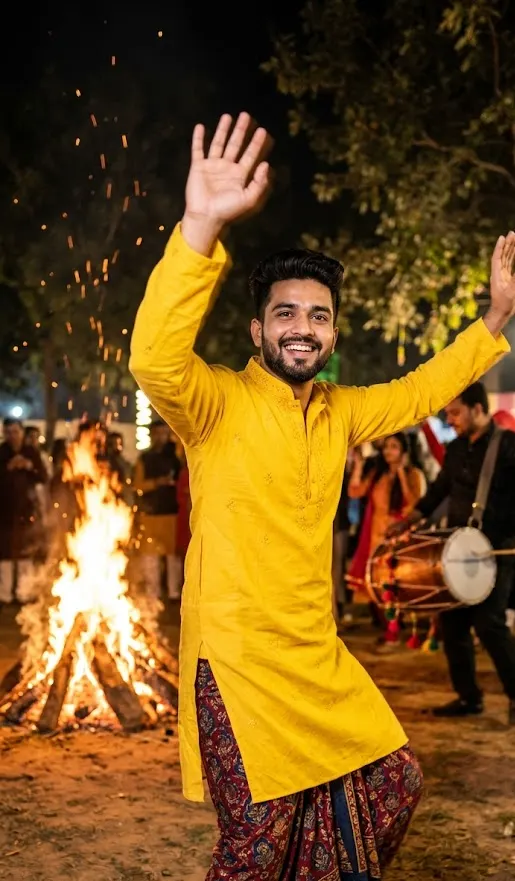 Lohri and Makar SankrantiBonfires, kites and harvest colours1 prompt · 14 Jan
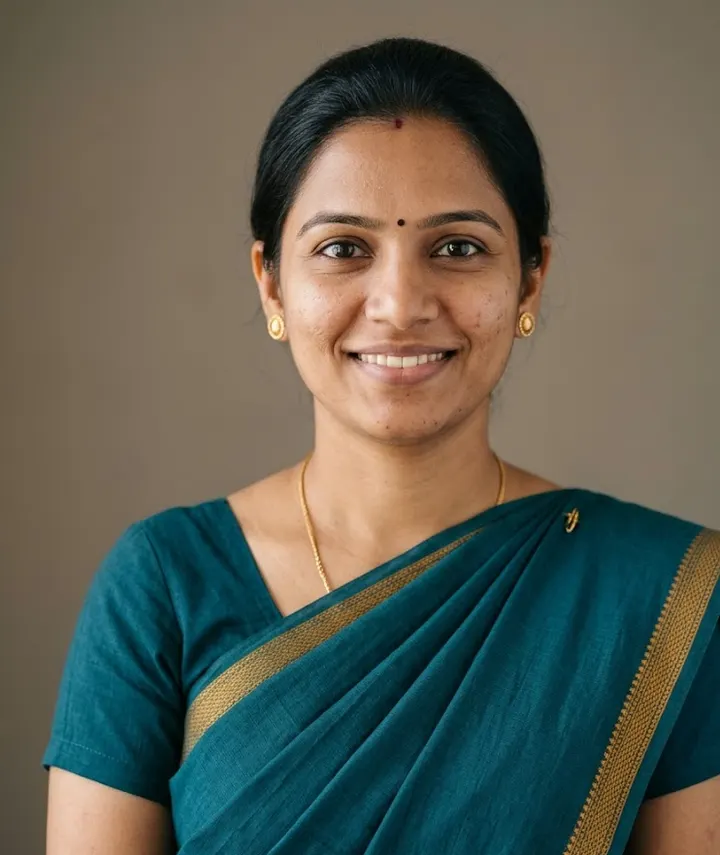 Professional HeadshotLinkedIn and CV-ready portraits1 prompt
Helpful guides
- Keep your face the sameWhy AI photo edits change your face, and practical fixes: better source photos, keep-face wording, one change per message and when to start over.
- Aspect ratio guideWhich aspect ratio to ask an AI app for: Instagram posts, stories, reels, profile photos and WhatsApp status, with sizes from Instagram and Meta help pages.
- Write AI photo promptsThe eight parts of a good AI photo prompt: subject, outfit, scene, lighting, style, framing, constraints and ratio, with Indian examples and a worked rewrite.