How to Keep Your Face the Same in AI Photos
The most common complaint about AI photo edits is simple: "That is not me." The saree looks lovely and the background is perfect, but the nose is thinner, the jaw is sharper, the skin is two shades lighter and you look ten years younger. Friends notice it at once, and the photo ends up unused.
This guide explains why face drift happens and what you can do about it in Gemini, ChatGPT or any other app that edits an uploaded photo. None of these steps can promise a perfect match every time, because image models make a new picture on each attempt. They do give the model clearer instructions and a better starting point, which usually narrows the gap.
Why AI changes your face
An image model does not cut and paste your face into a new scene the way a designer would in Photoshop. It reads your photo, then draws a new image that tries to match your request. Your face is one of many things it is trying to match, alongside the outfit, the light, the pose and the style. When your request pulls in a strong direction, the face can move too.
Google says its Nano Banana model was built with a focus on keeping a consistent likeness of people and pets across edits, which tells you this is a known hard problem that app makers are working on. Even so, small differences appear, and they grow when you edit the edited picture again and again.
- Beauty bias: many models lean towards smooth skin, slim faces and lighter tones unless told otherwise.
- Big changes at once: a new outfit, scene, light and art style in one prompt gives the model licence to redraw everything.
- Weak source photo: a blurry, side-on or heavily filtered selfie leaves the model guessing.
- Style words: "3D cartoon", "oil painting" or "anime" push features towards that style by design.
- Long chains: every follow-up builds on the last output, so tiny shifts add up.
Start with a photo that shows your real face
The model can only keep what it can see. A good source photo does more for likeness than any clever wording. Pick a recent photo where your face fills a fair part of the frame, the light is even, your eyes are open and nothing covers your forehead, eyes or mouth.
Turn off beauty mode and heavy filters before taking the photo. If your camera already smoothed your skin and slimmed your cheeks, the AI will treat that as your real face. Our photo checklist for AI editing covers lighting, angle and file quality in detail.
Wording that tells the model your face matters
Put the face instruction near the start and repeat it when you follow up. Be specific about the features that tend to drift for you. Our prompt generator adds a keep-face line automatically, but here is what it does and how to extend it.
- Basic line: "Keep my face exactly as in the uploaded photo: same facial features, skin tone, hairstyle and age."
- Stop beautifying: "Do not smooth my skin, slim my face, lighten my skin or change my makeup."
- Name your marks: "Keep my mole on the left cheek, my glasses and my beard shape."
- Keep the expression: "Keep my natural smile with teeth showing" or "keep my calm, closed-mouth expression".
- Limit the job: "Only change the background. Do not change anything about me."
- For groups: "Keep every person's face, height and skin tone as in the photo. Do not add or remove anyone."
Avoid vague praise words such as "beautiful", "flawless" or "perfect skin". They invite the model to improve your face, which is exactly the change you do not want.
A step-by-step routine for keeping likeness
- Open a new chat and upload your best source photo.
- Ask for the smallest useful change first, usually the background or the light.
- Compare the result with your original side by side. Look at eye shape, nose width, jawline, eyebrows, hairline and skin tone.
- If something drifted, name it: "My nose is narrower than in the original. Match the original nose exactly."
- Once the face is right, ask for the next change, such as the outfit, while repeating the keep-face line.
- After three or four rounds, if the face keeps slipping, start a new chat and upload the original photo again rather than the edited one.
- Save the version you like before experimenting further, so you can go back.
ChatGPT's selection tool can help here. OpenAI's help page explains that you can highlight one area and describe a change there, though it warns highlights are not always precise. Selecting only the background and asking to change it can reduce face changes, but always recheck. Gemini's tips from Google describe the same idea of changing specific parts of an image while preserving the rest through a conversation.
Styles and situations where faces drift most
| Situation | What usually changes | What to add to your prompt |
|---|---|---|
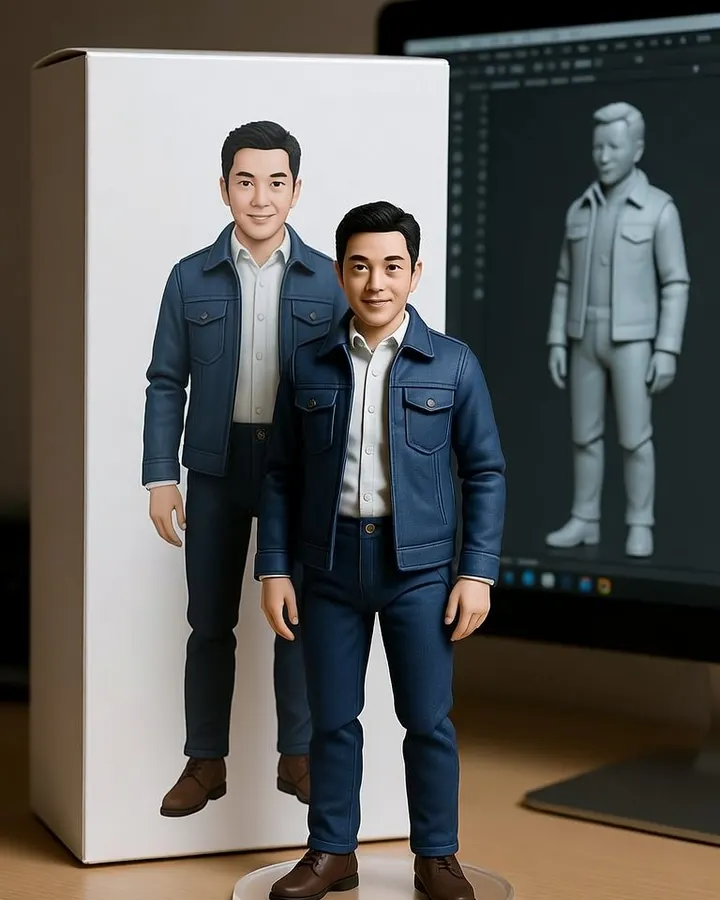
| 3D figurine or cartoon | Eyes grow larger, nose shrinks | Keep my real face proportions so friends can recognise me |
| Retro Bollywood poster | Skin turns very fair and glossy | Keep my natural skin tone and texture |
| Wedding or festival makeup | Face shape and lips change | Only add light makeup, keep my lip and face shape |
| Group or family photo | Faces blend or swap traits | Keep each face separate and exactly as in the photo |
| Baby or child photos | Child looks older | Keep the child's real age and features |
| Side-on or low-light selfie | Model guesses the hidden side | Use a clearer, front-facing photo instead |
Pages such as 3D figurine prompts, retro Bollywood prompts and family prompts already include keep-face lines written for those styles.
Respect other people in your photos
Keeping faces accurate also matters for the other people in your picture. Edit photos of yourself, or of family and friends who have agreed. Google's Gemini privacy page asks users to get permission before using other people's faces or voices in Gemini. For children, keep their real age, do not make them look older, and think twice before posting the result publicly.
Frequently asked questions
Why does the AI make me look fairer or slimmer?
Many image models lean towards a polished, filtered look unless you say otherwise. Write that your skin tone, face shape and body shape must stay exactly as in the photo, and add that you do not want skin smoothing or slimming.
Should I upload the edited image again to keep editing?
For small follow-ups in the same chat it is fine. If the face has drifted, go back to your original photo and start a new chat, because editing an edited image can stack small changes on top of each other.
Does uploading more photos of my face help?
Some apps accept more than one reference image. Google's help page says Nano Banana 2 in Gemini can accept multiple reference images. If you do this, say which photo is for your face and which is for the scene or pose. Results still vary.
Can any prompt keep my face 100 percent the same?
No. Image models create a new image each time, so some variation is normal. Clear wording, a good source photo and small changes per message usually bring the result closer to you.
Why do cartoon and 3D styles change my face so much?
Those styles exaggerate features by design, such as bigger eyes and smaller noses. Ask the model to keep your real proportions and recognisable features while applying the style, and accept that some change comes with the look.
Sources
App features and policies change. We checked these pages when we last updated this guide; the app maker's current page is always the final word.
More prompt ideas
 Professional HeadshotLinkedIn and CV-ready portraits1 prompt
 3D FigurineThe desk figurine trend3 prompts
Helpful guides
- Fix AI photo problemsFixes for the usual AI photo mistakes: extra fingers, face drift, plastic skin, garbled text, wrong ratio, extra people and orange or blue colour casts.
- Best photo for AI editingWhich photo to upload before an AI edit: light, angle, distance, resolution, filters, glasses and group shots, with a quick checklist table and phone tips.
- Edit photos with GeminiUpload a photo to Gemini, write a clear edit prompt, fix face drift and save the result. Plain steps, age rules and watermark facts from Google help pages.